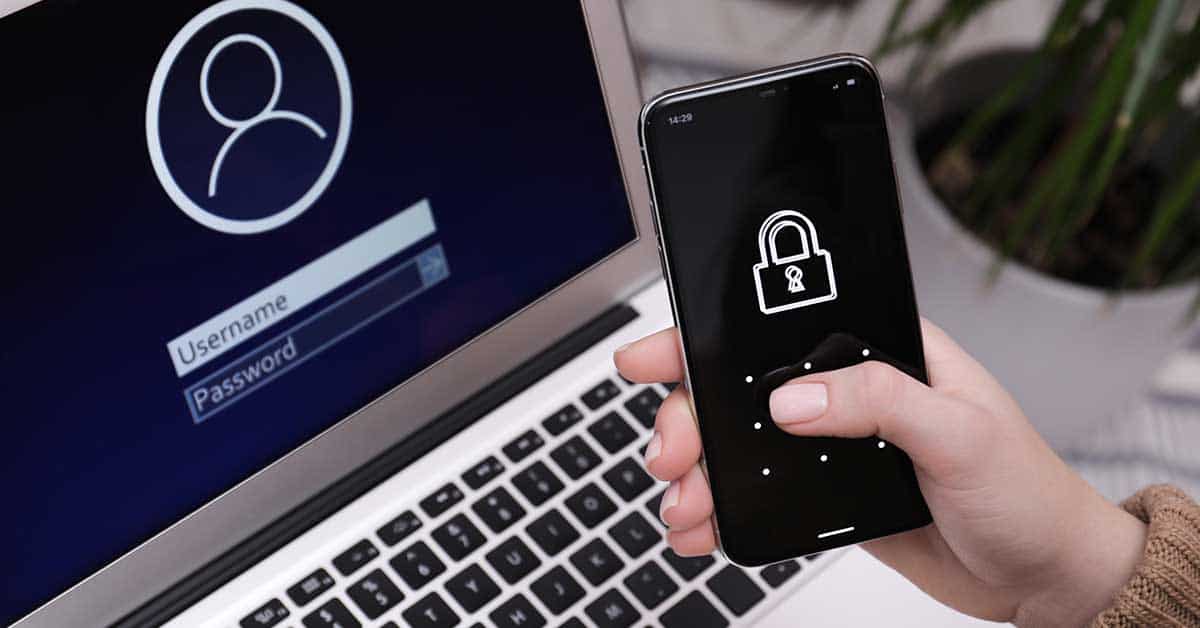
Two-factor authentication — a second lock for your accounts — isn’t a nice-to-have anymore; it’s the bare minimum if you don’t want your digital life burned to the ground overnight. People lose entire businesses, family photo archives, and school communities because they relied on a single password, often a weak one. In incident after incident, there’s a painful moment when someone says, “I meant to turn on 2FA… I just never got around to it.” Attackers are counting on exactly that procrastination.
Stripped of jargon: 2FA means you need two different kinds of proof before a system lets you in. Traditionally, accounts asked for one — your password. If an attacker guesses, steals, or phishes it, they’re in. 2FA adds a second lock, something else that’s harder to steal at scale. It doesn’t make you unhackable, but it turns you from an easy target into a frustratingly expensive one.
Security pros describe identity proof with a classic triad:
- Something you know — a password, PIN, or passphrase
- Something you have — a phone, hardware key, or token
- Something you are — fingerprint, face, voice, or other biometrics
2FA requires at least two different categories. Your password (something you know) plus a one-time code on your phone (something you have) is the most common combination. With one factor, an attacker needs a single successful trick; with two, they must compromise two different systems — often run by different companies — which dramatically raises the difficulty.
Two-Factor Authentication
You’ll learn what 2FA is, how it protects you, its drawbacks, and how to turn it on for major apps.
- What it is: a second proof of identity — something you have (an authenticator app or hardware key) or something you are (a fingerprint) — added on top of your password.
- Why it matters: 2FA stops most account takeovers and phishing, though expect occasional inconvenience, some lockout risk if you lose your second factor, and weak spots like SIM-swap or malware.
- How to set it up: check account support, choose a second factor (authenticator app; SMS only as a last resort; or a security key), enable it, and save backup codes. Widely supported by Google, Microsoft, Apple, banks, and social platforms.
How Does 2FA Work?
2FA works by forcing an attacker to break two independent things at once. You enter your username and password as usual; if that checks out, the service still doesn’t fully trust you and prompts for a second factor — a 6-digit code, a tap on a hardware key, or a confirmation on your phone. Only when you pass both do you get in. The main types:
- SMS codes — the site texts a one-time code you type in.
- Authenticator apps (TOTP) — apps like Google Authenticator, 1Password, or Authy generate time-based 6-digit codes.
- Push notifications — your app sends an “Are you trying to sign in?” prompt to approve.
- Hardware security keys (FIDO2/WebAuthn) — a physical device (like a YubiKey) you plug in or tap via NFC.
- Biometrics — Face ID or fingerprint, usually wrapping one of the above.
With password + authenticator app (TOTP), here’s what actually happens: during setup, your account and app exchange a secret key (usually via a QR code) and both store it. Every 30 seconds, your app runs that secret through an algorithm plus the current time to produce a 6-digit code. When you log in, you type it, and the server does the same math and checks for a match. Crucially, your phone isn’t receiving the code from the website — both sides independently compute the same code from the shared secret and the clock. So if someone intercepts your network traffic, they see only a one-time code that’s useless seconds later, not the secret itself. Think of it like you and the website sharing a secret recipe and both baking the same cookie every 30 seconds; if an attacker shows up with a cookie from five minutes ago, the site knows it’s stale.
Insider Tip: Two attacks happen every day — password-stuffing with breached credentials, and fake login pages that trick people into entering their password. 2FA kills the first outright and makes the second much harder, especially with hardware keys.
Hardware keys (the gold standard) are stronger still: instead of typing a code, you touch the key and it cryptographically signs a challenge from the website. No shared secret travels, nothing reusable leaks, and phishing sites can’t reuse what they steal because the key ties its signature to the legitimate domain. After rolling out security keys company-wide, Google reported zero successful phishing attacks on employees.
Why Use 2FA?
If you half-listen to security advice, listen to this: your password is already out there somewhere. According to NordPass, billions of passwords appear in public breach dumps every year, and attackers don’t guess random strings — they download those dumps and try the same email-and-password combo on every major service. If you reuse passwords anywhere, you’re betting your whole digital life that no site you’ve ever joined will be breached. That’s a foolish bet.
2FA is the one control that reliably stops the vast majority of brute-force and credential-stuffing attacks. Microsoft has repeatedly stated that enabling multifactor authentication blocks over 99% of account-compromise attempts. That’s not an incremental gain — it’s the difference between being a walking target and being a mild inconvenience. Picture someone reusing one password across email, social media, and cloud storage holding sensitive records: when a third-party site is breached, attackers try those credentials everywhere. The account with 2FA throws a “did you just try to sign in?” alert and blocks access; the ones without get hijacked instantly.
The stakes rise when an account touches sensitive situations — sextortion attempts or bullying reports in a school setting. Attackers try to break into the email or messaging accounts of victims and staff to gather leverage. When 2FA is on, they fail; when it isn’t, they walk in and escalate the harassment.
Insider Tip: The accounts that cause real damage aren’t random — they’re email, cloud drive, banking, and big-audience social media. If you won’t turn 2FA on for everything, at least lock down the “skeleton key” accounts that can reset all the others.
What Are the Downsides of 2FA?
2FA isn’t a free lunch. The most obvious cost is convenience — two steps instead of one, which grates when you’re rushing. The second is lockout risk: lose your phone, change numbers, or reset a device without migrating your settings, and you can lock yourself out — especially painful if you never saved backup codes and the account is a business email or admin portal.
There’s also unequal security among methods. SMS is better than nothing but weaker than app codes or hardware keys, because SIM-swapping — where criminals convince your carrier to move your number to their SIM — is disturbingly common in targeted attacks. Once they control your number, they get your 2FA texts and reset your passwords. Push-based 2FA has its own flaw: MFA-fatigue attacks, where an attacker triggers login prompts repeatedly until an overwhelmed user taps “Approve” just to make them stop. And there’s the mental overhead of adding 2FA on top of unique passwords, privacy settings, and everything else — which can feel like one more impossible rule for less tech-comfortable users.
The blunt stance: the downsides are real, but the alternative is worse. Occasional annoyance and the discipline of saving backup codes beat the fallout of an account takeover — students harassed from a hijacked profile, threats sent from your email, data leaked, money gone. “Occasionally annoyed and organized” wins over “devastated and scrambling” every time.
Insider Tip: Most 2FA problems come from poor rollout, not the technology. Pair it with a simple recovery process and short training, and complaints fade in a few weeks; skip that, and helpdesk tickets pile up until people lobby to turn it off.
How to Set Up 2FA
2FA only protects you if you turn it on properly and don’t strand yourself when something goes wrong. Treat setup as a short project, not a button you tap once — budget 30–60 minutes for your most important accounts and save yourself hours of panic later.
1. Check if your account supports 2FA
Most major services support it, but it’s often buried under “Security” or “Login & security.” Look for “Two-factor authentication,” “Two-step verification,” or “Multi-factor authentication.” Prioritize admin accounts (school systems, websites, shared platforms), email accounts that can reset other logins, big-audience or sensitive social media, cloud storage, and financial or crypto apps. List them in a notes file and check each off as you go, so a hidden critical account — like an old email still tied to your bank — doesn’t slip through.
Insider Tip: If a service doesn’t support 2FA in 2026, seriously reconsider whether it deserves any sensitive data or admin privileges. Lack of 2FA today is a red flag.
2. Choose your second factor
From strongest to weakest: hardware security keys (best for admins and high-risk users), app-based codes (TOTP) via authenticator apps (strong and widely supported), push-based 2FA (convenient, but never approve unknown prompts), and SMS codes (an acceptable fallback, but vulnerable to SIM swaps). For most people, a good authenticator app is the sweet spot; password managers that integrate 2FA (1Password, Bitwarden) back up and sync your tokens securely, though dedicated apps like Authy work fine if you understand their backup options. A school or youth organization can mix methods — hardware keys plus a backup app for staff and admins, app or push codes for students, SMS as a bridge for parents while nudging them toward apps.
3. Set up 2FA
The usual path: Settings → Security → “Two-factor authentication” → Enable, then choose your method. For an authenticator app, tap “Add account” or “+”, scan the QR code the site shows, and enter the generated 6-digit code to confirm. For a hardware key, insert it (or tap via NFC), touch the button when asked, and register it — adding a second backup key if the site allows. For your most important accounts, add at least two methods (say, a hardware key plus an app), so losing one factor while traveling doesn’t lock you out.
Insider Tip: When a site offers both SMS and app codes, don’t stop at SMS because it’s easier. Add the app too, then demote SMS to backup only.
4. Save your backup codes
This is where most people slip up. After enabling 2FA, services generate one-time recovery codes for when you lose your second factor. Do not screenshot them into your camera roll, email them to yourself in plain text, or click “Done” without saving them. Instead, store them deliberately: a secure password manager (preferred), a physical notebook in a safe spot, or printed codes in a locked drawer or home safe. Keep a paper copy for the two or three accounts that would be catastrophic to lose, like your primary email and main cloud storage — that boring decision is what saves an organization from a multi-day scramble when the only 2FA device is a lost phone.
Insider Tip: Treat backup codes like the emergency key to your house. You don’t leave it on the welcome mat, and you don’t throw it away because you’ll “never need it.”
What Apps Support 2FA?
By 2026, if an app holds anything sensitive and doesn’t support 2FA, that’s a problem — but almost every major category now does:
- Email & cloud — Gmail/Google Workspace, Outlook.com, Office 365, iCloud, Proton Mail, Dropbox, OneDrive
- Social media — Instagram, Facebook, TikTok, Snapchat, X, LinkedIn
- Finance — most major banks, PayPal, Cash App, Venmo, crypto exchanges
- Education — Google Classroom, Microsoft Teams, major LMS platforms, most student information systems
- Gaming & entertainment — Steam, PlayStation Network, Xbox Live, many streaming services
For young people and educators, social and messaging platforms are especially critical: attackers hijack a student’s or teacher’s profile and weaponize the trust of that identity to spread blackmail and sextortion attempts. 2FA closes one of the easiest doors they use. Check the “Security” section of each app (many have step-by-step wizards), search “[service name] two-factor authentication” for current instructions, and — for a school or youth group — build a 2FA checklist for the apps you recommend. Folding 2FA into digital-citizenship training sends a clear message: security is part of how we use technology here, not an optional side quest.
Insider Tip: Helping students enable 2FA on the apps they actually use — Snapchat, Instagram, gaming platforms — doesn’t just protect accounts; it builds a habit that follows them into adulthood, where the stakes get higher.
Conclusion: 2FA Is the Second Lock You Can’t Afford to Skip
2FA isn’t about perfect security; it’s about refusing to be the lowest-hanging fruit in a world where attackers automate everything. A password — however strong — puts all your trust in one brittle secret. A second factor splits that trust across two separate systems, usually in two places, owned by different entities, and that alone makes you a much harder target.
Yes, it’ll occasionally annoy you — a fumbled phone, a late code, backup codes you hope you never use. Weighed against the reality of account takeover — harassment from your stolen profile, sextortion fallout, leaked records, drained accounts — that irritation is a tiny price. So start today: pick your three most important accounts (probably email, cloud storage, and a main social or banking app), turn on 2FA with an authenticator app or hardware key, save the backup codes properly, then work down the list and pair it with strong, unique passwords. The internet isn’t getting safer by default — you either add your own locks or rely on the kindness of strangers and the incompetence of attackers. 2FA is the second lock that shifts the odds back in your favor.
Common Questions
What is two-factor authentication, and why does it matter? It’s a second lock for your accounts that requires two different proofs of identity, greatly reducing the risk of unauthorized access.
Who should enable two-factor authentication? Everyone with online accounts — it protects your password and prevents many common account takeovers.
How does 2FA actually protect my accounts? It requires your password plus a second factor — a code, push approval, hardware key, or biometric — to verify it’s really you.
Isn’t 2FA too inconvenient for everyday use? It adds a step, but push notifications and biometrics make it quick, and the security benefit far outweighs the minor hassle.
What types of 2FA are available? SMS codes, authenticator apps, push notifications, hardware security keys, and biometrics — with hardware keys offering the strongest phishing resistance.
What should I do if I lose access to my second factor? Use your saved recovery codes or a backup method; if those aren’t available, follow the provider’s account-recovery process and contact support.